

Multiple .avi video image playback issue

in OpenSesame
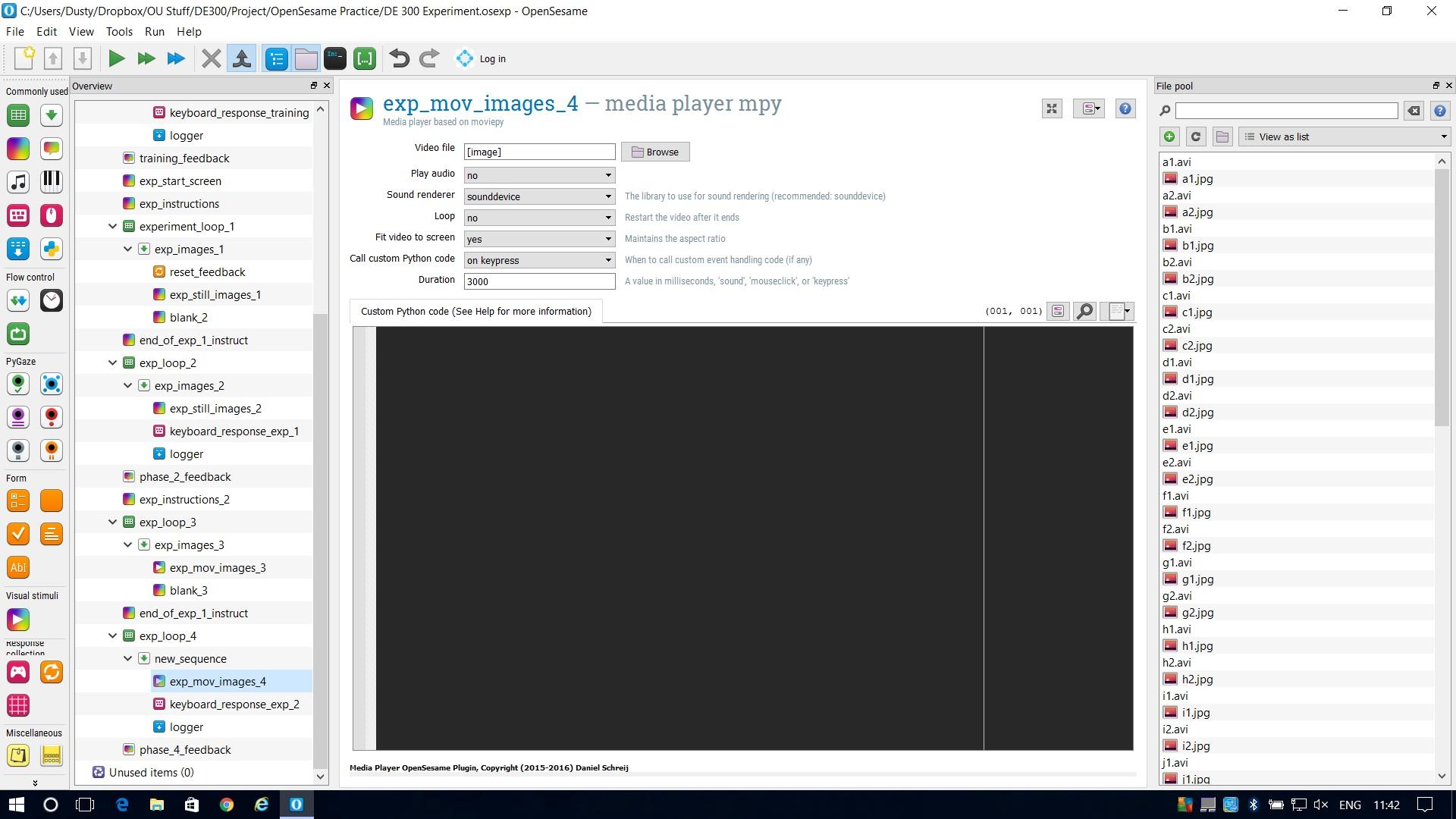
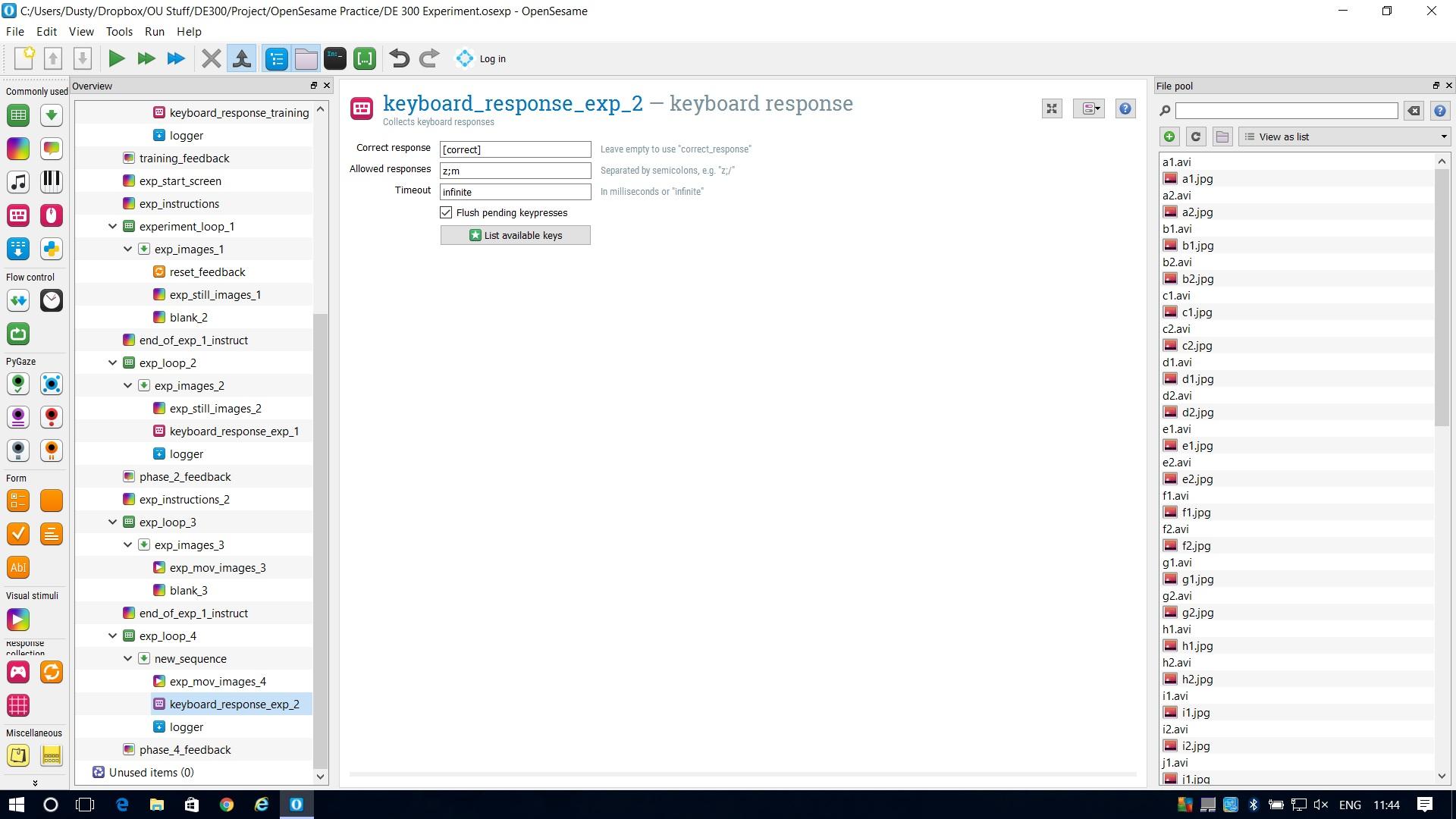
I have added 10 moving .avi video images for the 3rd part of an experiment I am designing:
Pt 1: Training section.
Pt 2: Static web page images.
Pt 3: Moving web page images.
Although these run perfectly well when presented for 3000 milliseconds in loop 1 (of Pt3) when I try to add the "Z" or "M" keyboard response into the second presentation, the video images will not display (even after setting the Duration to 0)?
I have changed the duration between "0", "key press" and "3000" but this has not worked so far, even though this does when using still images?
Any help or advice would be fantastic, even a pointer to a guide that explains how to do this (if there is one)?!
Many thanks,
'Dusty'
Comments
Hi Dusty,
the video player items work a little bit differently than the other OpenSesame items. If you set the duration to 0, the video will not play at all! To collect responses during video playback, you need to use the script box of the videoplayer item. You can find instructions about how to use scripts, and the variables that are available, in the item's help page. A (untested) script that should do the trick in your situation:
To let this work correctly, you also need to set the
Call custom Python codesetting toafter each frameand setDurationto the maximum value you want to show the video for. Just to be clear, I haven't been able to test the above code, so I'm not entirely sure if this script works directly. You also need to add the logic that determines if a response is correct yourself (and pass this to the responses.add() function). Finally, remove any keyboard_response items you had previously placed after the video player items; response collection is now handled by the video player item itself in its script.I agree it is a difficult way to collect responses during video playback. Hopefully we can make this a bit simpler in the future.