

Sketchpad: sentences going beyond the experiment screen

Hi everyone,
I have a very practical problem: I have long sentences in my sketchpad that are displayed with automatic line breaks in the OpenSesame software (picture 1), but when I run the web version of the experiment line breaks disappear and the text goes beyond the experiment window (picture 2). I would like to keep those linebreaks without having to manually type them so that each sentence can fit in the screen.
I tried to code an invisible box with some HTML/CSS in the sketchpad script, but it was without success. Am I missing an option or a command in the sketchpad script that would allow for automatic line breaks?
Note that the experiment has to be online so I cannot use python inline_script or form_base. Similarly I tried to work around with inline_html but it only allows for a mouse click on an input object with submit type to move to the next screen, and I specifically need keypresses.
Any idea of what I should do?
Thank you,
Silk
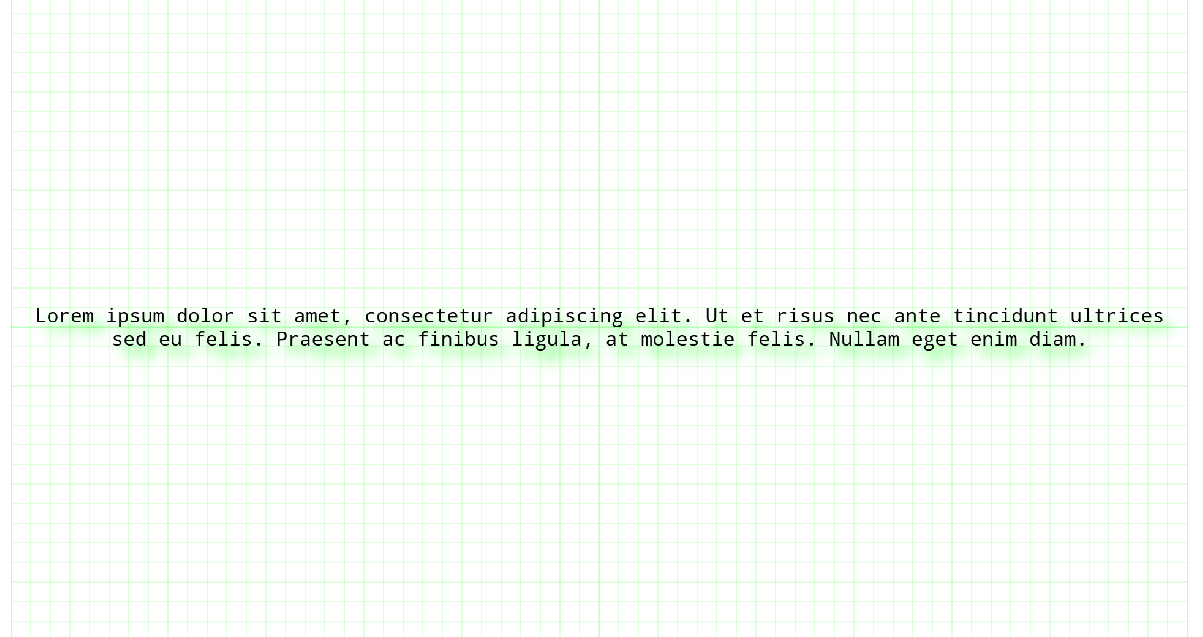
Picture 1
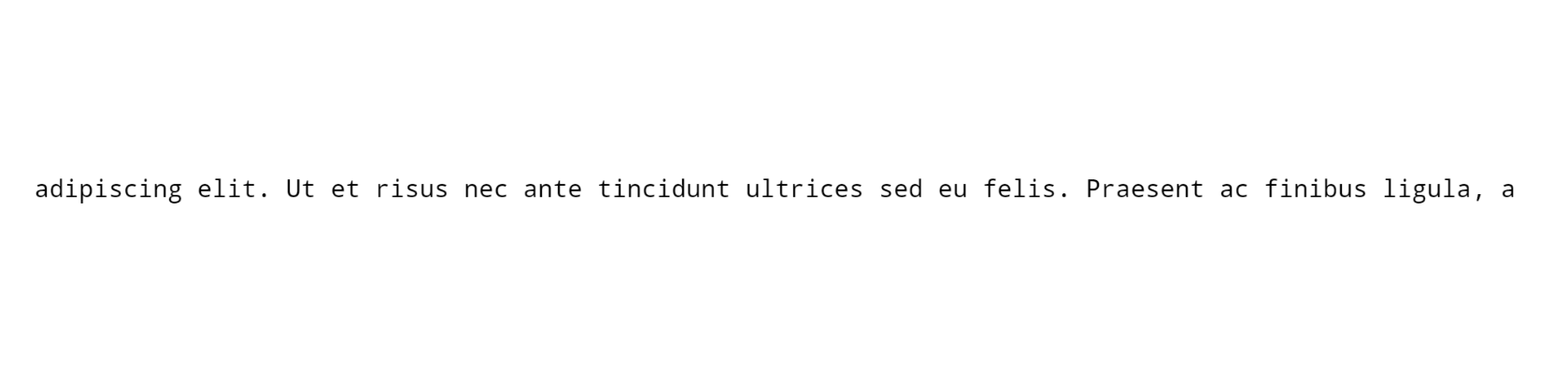
Picture 2
Comments
Hi @Silk ,
The lack of automatic line breaks is indeed an annoying limitation of OSWeb, which results from how text is rendered on the OSWeb canvas. What you can do instead is use a form, which is a normal web page that uses normal text rendering, and then programmatically close the form when a key is pressed.
I'm assuming that you're using OpenSesame 4.0 here, which offers a few convenient improvements over the 3.3.
First, let's assume that you have a variable called
my_textthat contains the text that you want to show. You can define this in aloop, or aninline_javascriptitem like so:Then add a
form_htmlthat shows this variable as text, has a hidden submit button, and installs a key press listener that programmatically presses this hidden button whenever any key is pressed. (So you don't have to explicitly click on the button.)<p>{my_text}</p> <input type='submit' value='ok' id='submitButton' hidden> <script> function keyPressed(e) { document.getElementById('submitButton').click() window.removeEventListener('keypress', keyPressed) } window.addEventListener('keypress', keyPressed) </script>It's a bit involved, but it does work. Do you see the logic?
— Sebastiaan
Check out SigmundAI.eu for our OpenSesame AI assistant!
Hi @sebastiaan ,
Thank you very much for the quick answer. Yes I see the logic and it works perfectly. I improved your code a bit so that it can select for specific keys and store them for future uses.
In the
inline_javascriptitem, I defined a new variablewhich_keythat acts as a placeholder for the key that will be stored later. I also created an arrayallowed_keysthat tells which keys will trigger the click on the hidden button.In the
inline_htmlfile I included a conditional statement in the function. It looks into the array and check whether this array includes the pressed key or not. Then, the pressed key is stored in the variable I defined earlier.<p>{my_text}</p> <input type='submit' value='ok' id='submitButton' hidden> <script> function keyPressed(e) { if (allowed_keys.includes(e.key)) { which_key = e.key document.getElementById('submitButton').click() window.removeEventListener('keypress', keyPressed) } } window.addEventListener('keypress', keyPressed) </script>I hope this can help others :)
Silk--